Skip to content
Kalever
  • How We Work
  • The Platform
  • Why Kalever
  • Resources
    • Articles
    • Product Decks
    • Case Studies
  • Contact
Kalever
  • How We Work
  • The Platform
  • Why Kalever
  • Resources
    • Articles
    • Product Decks
    • Case Studies
  • Contact

Getting Started

4
  • Your Home Dashboard: Overview
  • Account and Notification Settings
  • Create a New Project
  • Navigating the Project Dashboard

Pricing tool

2
  • How to Create a New Quote
  • How to Download, Edit, and Duplicate Quotes

Survey Creator

8
  • How to Create a New Survey
  • Classic Editor: Control Area
  • Classic Editor: Overview
  • Classic Editor: Adding and Editing Survey Elements
  • Classic Editor: Using Custom Modules
  • Decipher Editor: Editing Your Survey
  • Dimensions Editor: Editing Your Survey
  • AI Assistant

TrackEntry Tool

4
  • Introduction to TrackEntry: Access and Overview
  • How to Create, Edit, and Manage Entries
  • Using Live Chat for Real-Time Communication
  • How to Integrate TrackEntry with a Decipher Survey

Codebooks Tool

2
  • Creating a Codebook for Open-Ended Data
  • How to Edit and Manage Your Codebook

Best Practices: A Project Lifecycle Guide

8
  • The Bidding Stage: Creating a Winning Quote
  • Phase 1: The Bidding Stage: Creating a Winning Quote
  • Phase 2: Project Kick-Off: Setting Up for Success
  • Phase 3: Questionnaire Design — From Idea to Final Draft
  • Phase 4: Initial Survey Programming: A Seamless Handoff
  • Phase 5: QA – Efficient and Traceable Survey Testing
  • Phase 6: Managing Client Feedback and Changes
  • Phase 7: Data Checks — Ensuring Data Quality

ResearchReady

4
  • Introduction to ResearchReady
  • Accessing ResearchReady
  • Running an Analysis within ResearchReady tool
  • Reviewing Results

QAReady

4
  • Introduction to QAReady
  • Accessing QAReady
  • Running a check with QAReady
  • Reviewing the Results
View Categories
  • Home
  • Knowledge Base
  • QAReady
  • Reviewing the Results

Reviewing the Results

Accessing the Report  #

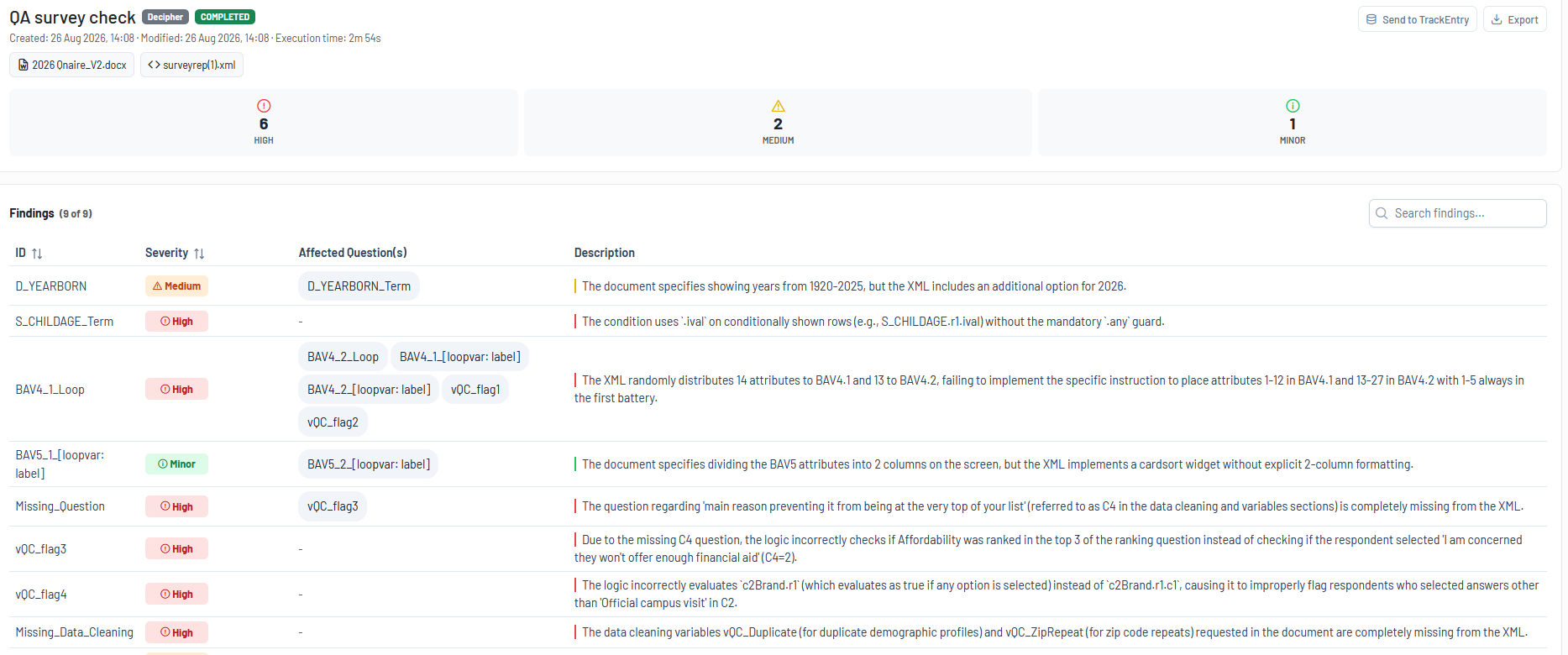
When the QA review is complete, the findings report is displayed automatically.
If you close the report, it can be accessed at any time from the Project Dashboard, where all QAReady reviews are stored within the QAReady tool.

Understanding the Results #

The QAReady findings are presented in a table with four primary columns:

  • ID identifies the question or section affected by the finding
  • Severity indicates the importance of the issue.
    High: Must be addressed
    Medium: Recommended to address
    Minor: Optional improvement
  • Affected Question(s): lists the questions impacted by the finding
  • Description : Provides a detailed explanation of the issue, including references to the source of discrepancy.

A findings summary is provided above the table. It shows a breakdown of all identified issues by severity level. Each severity category displays the number of associated findings and can be selected to filter the report, showing only findings of the chosen severity.

Additional functionality includes:

  • Quick access in the upper left corner of the window to all files used during the review, allowing you to open the relevant source documents directly.
  • Sorting by ID or Severity.
  • Search functionality to help navigate reports with a large number of findings.

Export and Sharing Options #

QAReady includes export and sharing capabilities to support collaboration, review, and issue resolution workflows.

You can either transfer findings directly to TrackEntry within the project or export the results for external use.

Integration with TrackEntry #

Send Findings to TrackEntry: Selected QAReady findings can be transferred directly to TrackEntry, providing a structured process from issue identification to issue management.

This integration supports a clear workflow from “issue identified” to “action assigned and tracked.”

Key Features:

  • Convert all findings or selected findings into follow-up actions
  • Preview entries before creation
  • Add custom tags where applicable
  • Modify descriptions if required
  • Map QAReady severity levels to TrackEntry priorities
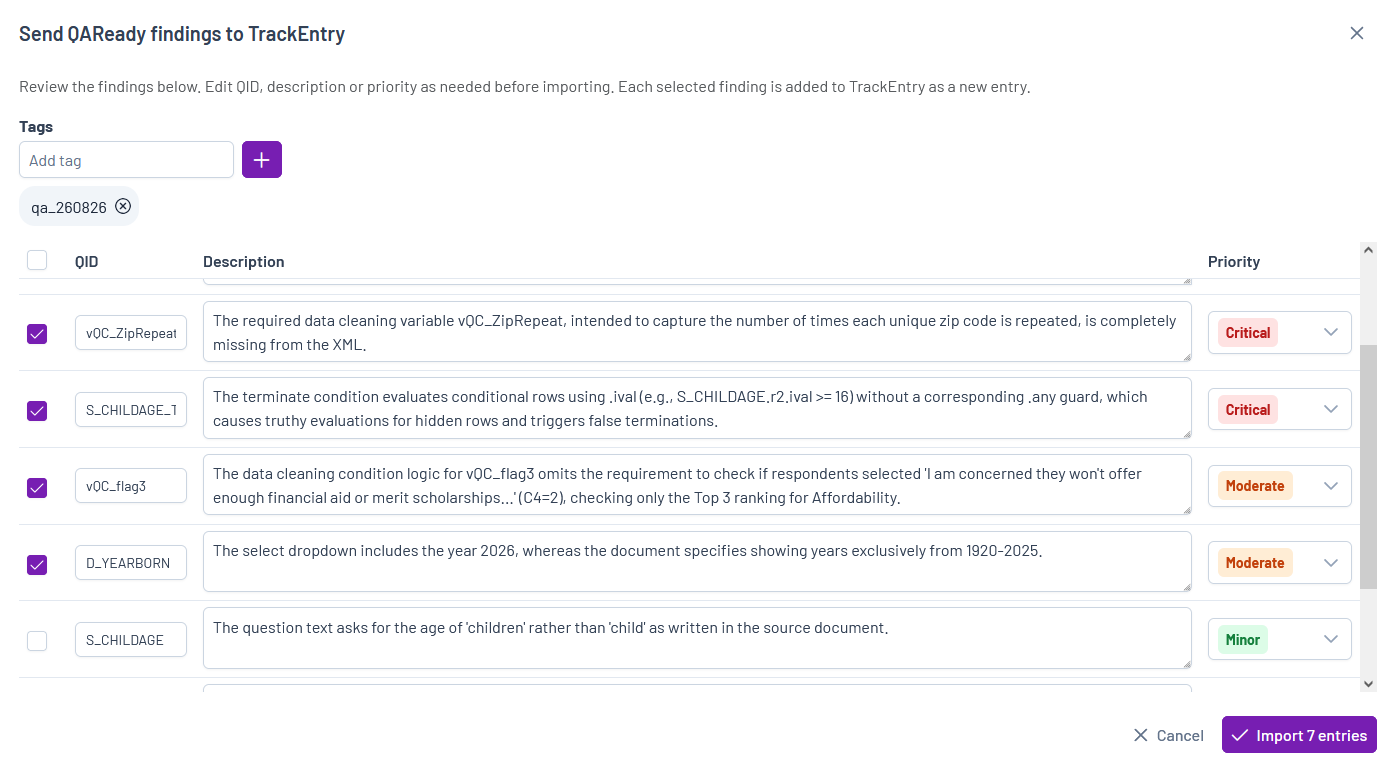
After import, the created items will be available in the project’s TrackEntry page.

Export #

QAReady findings can also be exported for offline review and sharing. Supported export formats include:

  • PDF
  • CSV

These exports can be used for documentation, stakeholder review, or external issue-tracking processes.

Running a check with QAReadyIntroduction to QAReady
Table of Contents
  • Accessing the Report 
  • Understanding the Results
  • Export and Sharing Options
    • Integration with TrackEntry
    • Export

Share This Article :

  • Facebook
  • X
  • LinkedIn
  • Pinterest

Was it helpful ?

  • Happy
  • Normal
  • Sad
Contact form
Contact form
Linkedin

Copyright © 2026 Kalever | Powered by Kalever